 Laser MTS
In short
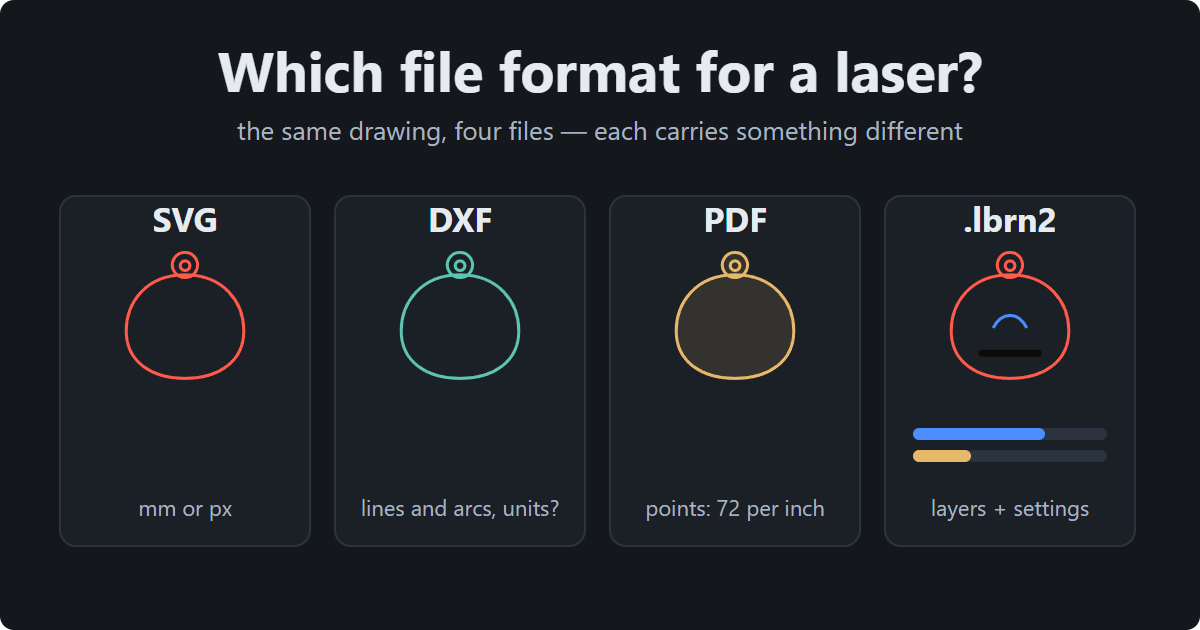
- SVG is the most convenient exchange format — as long as it has a unit in millimeters (or inches). Bare “pixels” mean 96 per inch in Inkscape and 72 in Illustrator, which is why files import at 75% or 133%.
- DXF carries lines, arcs and polylines, but often no units — the laser software has to guess millimeters or inches (a 25.4× error). Splines get turned into straight segments.
- PDF and AI always count in points (72 per inch), so the size is reliable; text without its font has to be converted to outlines. LightBurn reads AI, xTool doesn’t.
- .lbrn2 is a LightBurn project: shapes plus layers with power, speed and passes. You open it rather than import it — importing keeps only the graphics.
- Send a laser shop an SVG in mm (text outlined, one color per operation) plus a PDF for reference; send .lbrn2 only when both sides run the same laser and material.
What a laser file carries
Laser software needs five things from a file: geometry (lines, arcs, curves), units (how many millimeters or inches that is), a split into operations (colors or layers: what to cut, what to engrave), possibly text and an image to engrave — and, in a project file, the settings (power, speed, passes). No format carries all of it, and most trouble comes from what the file leaves out.
| Format | Units | Geometry | Operations | Text | Image | Laser settings |
|---|---|---|---|---|---|---|
| SVG | mm, cm, in, pt or “px” (counted differently) | Bézier curves | stroke and fill colors, Inkscape layers | yes, as text | yes, embedded | no |
| DXF | in the header, often empty | lines, arcs, circles, polylines, splines | named layers and an indexed color | yes, as text | reference only | no |
| PDF / AI | points, 72 per inch — always | Bézier curves | colors; usually no layers | yes, with embedded fonts | yes | no |
| PLT / HPGL | 0.025 mm (1/1016″) | straight segments only | pen number | no | no | no |
| PNG / JPG | DPI, if saved | none — pixels | — | — | it is an image | no |
| .lbrn2 | mm | curves | layers C00–C29 | yes | yes | yes: mode, power, speed, passes |
SVG — the best exchange format, if it has a unit
SVG is a text file of curves that almost every graphics and laser program opens. Its one trap is units. A size in millimeters (width="100mm") or inches (width="4in") is unambiguous. But many programs write only numbers “in pixels” — and how many pixels make an inch is something each program decides for itself:
- Inkscape and the CSS standard: 96 per inch. LightBurn reads SVG this way by default.
- Illustrator: writes points, 72 per inch. A program counting 96 per inch loads such a file at 75% size.
- Inkscape up to version 0.91: 90 per inch. An old file comes in at 93.75% — 100 mm becomes 93.75 mm (4″ becomes 3.75″), which is easy to miss.
LightBurn has a switch for this: Settings → Import/Export → SVG Import — 96 DPI (Inkscape) or 72 DPI (Illustrator). xTool has a similar field. Simpler still: save the file with real units. In Inkscape, set the document units to mm or inches (File → Document Properties); from Illustrator, export PDF or AI instead of SVG. The “what came out → scale by” table is in our post on laser cutting file mistakes.
Beyond units, SVG behaves predictably: curves stay curves (the laser software flattens them to segments at its own tolerance), the stroke color lands on a layer, and the program snaps it to the nearest palette color. Two things SVG won’t do for you: text is stored as a string plus a font name, so without that font on the computer the laser substitutes another or drops the text — convert to outlines before saving; and an image embedded in an SVG is still an image, not a cut line — it needs vectorizing.
DXF — numbers without units
DXF is the exchange format of CAD programs (AutoCAD, Fusion, FreeCAD, SolidWorks). It stores geometry as a list of entities — LINE, ARC, CIRCLE, polylines and splines — each on a named layer with a color from a numbered palette. Three things to know:
- Units are optional. The DXF header has a field for units (
$INSUNITS: 0 = none, 1 = inches, 4 = millimeters), but many programs leave it empty. Then the file is just numbers, and the laser software guesses. LightBurn has an “Auto-detect units if possible” option plus a fallback unit for files it can’t identify; xTool’s DXF import settings include similar detection. Inches read as millimeters give a part 25.4 times too small — and the other way round. Always measure one known dimension after importing. - The outline is usually in pieces. A rectangle from CAD is four separate lines, a rounded corner a separate arc. The laser cuts the pieces one by one, stopping at every end, and the part may not drop out if the ends don’t meet exactly. LightBurn and xTool both have an “auto-close tolerance” in their DXF import settings — the distance below which ends are joined into a closed contour. Best of all is to join them into a single closed polyline in CAD before exporting.
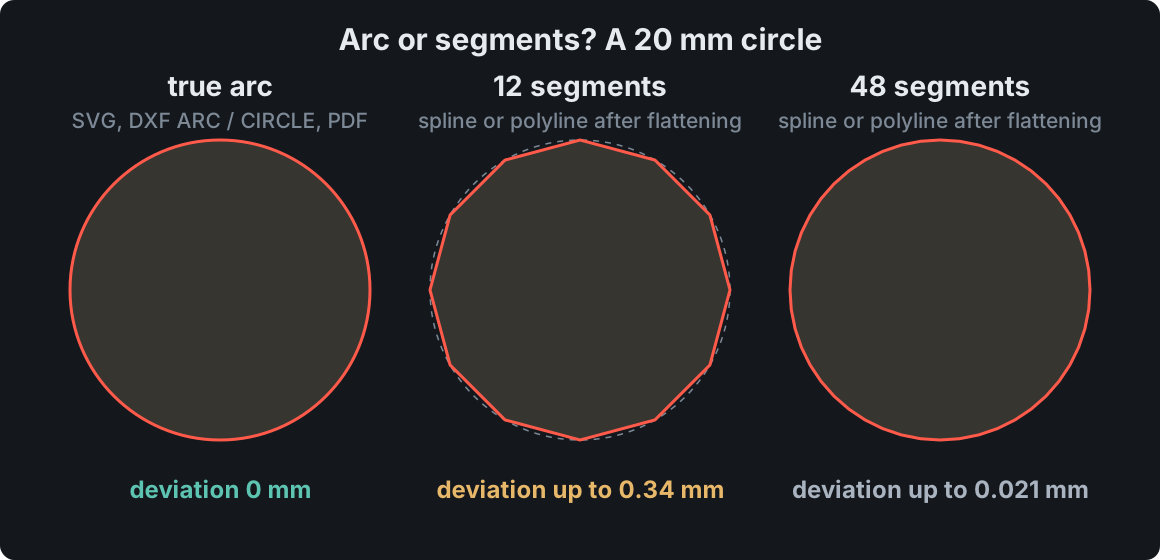
- A spline is not an arc. A circle stored as
CIRCLEorARCstays a true arc. A freeform spline or a flattened polyline is a chain of straight segments — how many depends on the program that wrote it and on the tolerance the laser software reads it with.
Text in DXF (TEXT, MTEXT) and dimensions need a font and are sometimes dropped or scaled wrong — convert lettering to outlines. Blocks (INSERT) are references to definitions elsewhere in the file; explode them before exporting so nothing goes missing. The most widely read variant is DXF R12 in ASCII — when the save dialog offers a version, pick that one and the laser gets plain entities every program understands.
PDF and AI — reliable size, text to check
In a PDF the unit is always the point, 1/72 of an inch — the format standard says so. That’s why a PDF from Illustrator, CorelDRAW, Affinity or a print shop loads at the right size, no guessing. The file carries curves, images and text together with embedded fonts — but LightBurn doesn’t read embedded fonts: for lettering to come in as shapes, convert it to outlines before saving or install the same font. PDFs usually have no layers but keep colors, so splitting into operations works as in SVG. Send a single page: a multi-page PDF is an invitation to import the wrong one.
A modern AI file is a PDF inside — provided Illustrator saved it with “Create PDF Compatible File” checked. Without it, other programs see only a page saying the file was saved without PDF content. LightBurn imports AI; xTool Creative Space and xTool Studio don’t (Studio does read PDF). If you design in Illustrator, save AI with that option or export PDF — both sidestep the 72/96 DPI problem that breaks SVG.
PLT and images
PLT / HPGL is the language of old pen plotters: straight segments only, in a unit of 0.025 mm (1/1016″), with a pen number instead of a color. Arcs are already broken into segments; text and images don’t exist. LightBurn imports it, xTool doesn’t. It only makes sense when an old program can’t save anything else.
PNG, JPG, BMP are images — a laser can only engrave them. The size comes from the saved DPI, and if there is none, the program assumes its own. To cut an outline you have to vectorize it — see our post on vectorizing an image for laser cutting.
.lbrn2 — a project, not a drawing
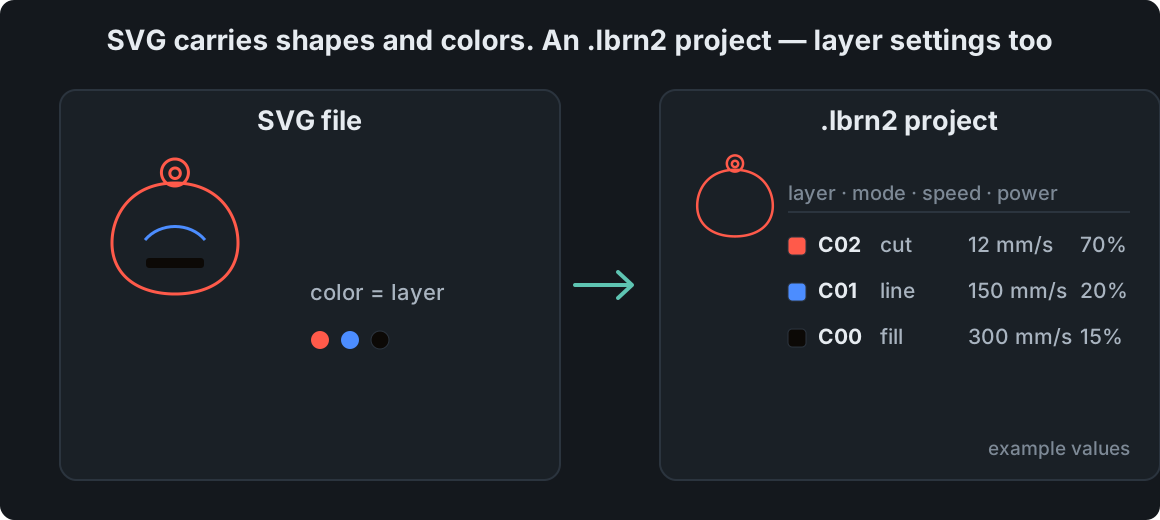
LightBurn saves projects as .lbrn2 (the older .lbrn is human-readable but bigger). Besides shapes in millimeters, it holds layers with a mode (cut, line, fill, image), power, speed, number of passes, and the cut-order optimization settings. The documentation is explicit: opening the file (Open) loads the settings, importing loads only the graphics. If someone sends you an .lbrn2 “with the settings in it,” open it — don’t import it.
Two caveats. The settings in a project fit one specific laser, lens and batch of material — someone else’s .lbrn2 on your machine is a starting point to test on a scrap, not a recipe. And only LightBurn reads .lbrn2. xTool has its own project format (.xcs); Trotec, Epilog and Universal have their own drivers. For exchanging files between shops, SVG remains the better choice.
What LightBurn imports, and what xTool does
According to both vendors’ documentation (as of October 2026; check the import dialog in your version):
| Software | Vectors | Images | Project |
|---|---|---|---|
| LightBurn | SVG, DXF, AI, PDF, PLT/HPGL | PNG, JPG, BMP, GIF, TIFF | .lbrn2, .lbrn (import = graphics only); G-code as geometry only |
| xTool Creative Space | SVG, DXF | JPG, PNG, GIF, BMP, WEBP | .xcs |
| xTool Studio | SVG, DXF, PDF, PSD | PNG, JPG, BMP, WEBP, TIF, GIF | .xcs |
The practical takeaway: everyone opens SVG and DXF; PDF works in LightBurn and xTool Studio; AI and PLT only in LightBurn. If you don’t know what the other side cuts with, send SVG.
What to send a laser shop, what to accept from a customer
Sending to a shop
- SVG with units in mm or inches (or a PDF) — one file, one page.
- Text converted to outlines, clones unlinked, hidden objects deleted.
- One color per operation and a legend in the email: “red — cut, black — engrave.”
- The overall size in the file name or the message, e.g.
pendant-50x70mm.svg— the shop checks the scale right away. - .lbrn2 only when both sides run LightBurn, the same laser and the same material.
Receiving from a customer
- Measure one known dimension right after importing. 75%, 133%, 93.75% or 25.4× means mixed-up units, not a bad drawing.
- Count the layers — as many operations, as many colors. Two almost identical reds will split into two layers.
- Check that contours are closed and nothing is doubled (DXF from CAD, parts butted together).
- A “logo.svg” with an image inside, a PDF with a photo, lettering as text in a DXF — send it back for fixing, or vectorize it yourself and charge for it.
If you make your cut files in the Laser MTS generators — boxes, keychains, puzzles, maps — each of them saves three files at once: SVG, DXF and a LightBurn .lbrn2 project with the layers set up, so the format takes care of itself. Customer files go through Auto-Preflight (Pro plan): it shows the detected units and the real size in millimeters, open contours, text, double lines, clones, hidden objects and images — and fixes what can be fixed with one button.
Which format when
| Situation | Format | Why |
|---|---|---|
| Exchanging with another shop | SVG in mm | every program reads it, the unit is in the file, colors = operations |
| From a CAD program | DXF R12 (polylines), SVG as backup | exact arcs; join contours and explode blocks before saving, set units to mm or inches |
| From Illustrator | PDF or AI (PDF Compatible) | points at 1/72″ — none of the 72/96 DPI trouble that breaks SVG |
| A project for someone with the same laser | .lbrn2 | layers with power and speed; the recipient opens it, not imports it |
| A preview for a customer | PDF or PNG | opens on a phone, scale can’t drift |
| Photo engraving | PNG with DPI (lossless) | JPG adds compression artifacts to gradients |
| Old software that doesn’t know SVG | PLT | last resort: straight segments only, no text or images |
Frequently asked questions
What is the best file format for a laser cutter?
For exchange — SVG with units in millimeters or inches, text converted to outlines and one color per operation. From CAD, DXF works well; from Illustrator, PDF. A project with cut settings (.lbrn2) only makes sense between LightBurn users with the same laser.
Can a laser cutter use PDF files?
Laser software can import the vectors from a PDF — LightBurn and xTool Studio do, xTool Creative Space doesn’t. The size is reliable (a point is 1/72″), but text with an embedded font has to be converted to outlines first, and an image inside the PDF stays an image for engraving.
Why does my SVG import at the wrong size?
Because the file has no unit, and programs count “pixels” differently: Inkscape and LightBurn use 96 per inch, Illustrator 72, Inkscape before 0.92 used 90. Save the file in mm or inches, or switch the SVG import DPI in the laser software (96 or 72 in LightBurn).
What is the difference between .lbrn2 and SVG?
SVG carries shapes and colors. An .lbrn2 file is the whole LightBurn project: the same shapes plus layers with mode, power, speed and passes, and the optimization settings. Only LightBurn reads it, and the settings fit one particular machine.
DXF or SVG for LightBurn?
Both work. SVG is safer when it has a unit; DXF gives exact arcs from CAD but often lacks units and comes with contours in pieces. After importing a DXF, measure a dimension and check that contours are closed.